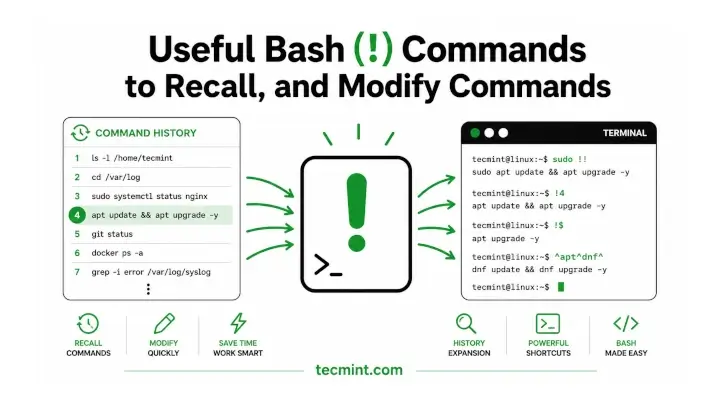
Most Linux users come across the ! symbol in only two situations: when they learn the sudo !! shortcut, or when a password containing an exclamation mark inside double quotes causes the event not found error. Everything else that ! can do often goes unnoticed for years.
The reason is that ! actually has two completely different purposes in Bash. In an interactive terminal, it is used for history expansion, which lets you quickly recall, reuse, and edit commands you’ve already run.
In tests, patterns, and parameter expansion, ! is used for logical negation, and this works in both interactive shells and shell scripts. Since the same symbol serves two different roles, it’s easy for beginners to get confused.
In this guide, you’ll learn 10 practical uses of the ! character in Bash, from recalling and modifying previous commands to using logical negation in shell scripts and exclusion patterns.
All examples were tested with Bash 5.2 and work on modern Linux distributions. While some history expansion features are also available in shells such as zsh and ksh (KornShell), but shells such as dash and POSIX sh do not support history expansion at all.
This difference becomes especially important when you start writing shell scripts.
1. Run a Command from History Using Command Numbers
Every command you execute in Bash is assigned an event or unique number in your command history. If you know the event number, you can rerun that command instantly without typing it again.
First, display your command history:
history
Example output:
1549  pwd
1550  ls -l
1551  top
1552  df -h
The output shows a numbered list of previously executed commands. To rerun one of them, type ! immediately followed by its event number:
!1551
Bash expands !1551 into the command stored under event number 1551 and executes it immediately. which in this example is:
top
The actual event numbers on your system will be different, so use the history command to find the correct one before rerunning it.
! and the event number. !1551 performs history expansion, whereas ! 1551 is interpreted differently and Bash will try to execute a command named 1551, resulting in a command not found error.2. Run Previously Executed Commands by Relative Position
You don’t always need to remember a command’s event number. Bash also lets you reference commands by their position relative to the current command, which is handy when you only need to rerun something from the last few commands.
The most recently executed command is !-1, the command before that is !-2, then !-3, and so on.
For example:
history
!-6
!-8
!-10
In this example:
!-6runs the command you executed six commands ago.!-8runs the command from eight commands ago.!-10runs the command from ten commands ago.
Unlike absolute event numbers (such as !1551), relative references change every time you execute another command because they’re always counted from your current position in the history list.
If you’re unsure which command a relative reference points to, you can preview it before running it using the :p modifier, which you’ll learn later in this guide.
Relative references are ideal for quickly repeating one of your recent commands. However, if you need to rerun the same command later in the session, using its event number (for example, !1551) is usually more reliable because that event number remains unchanged for the duration of the current shell session.
! character.3. Reuse Arguments from the Previous Command
One of the biggest time-savers in Bash is reusing arguments from the command you just ran. Instead of typing long file or directory paths again, you can recall them with history expansion word designators.
For example, suppose you list a directory:
ls /home/$USER/Binary/firefox
A moment later, you realize you wanted the long listing format. Rather than retyping the entire path, use !$ to insert the last argument from the previous command:
ls -l !$
Before executing the command, Bash expands !$ to:
ls -l /home/$USER/Binary/firefox
Common Word Designators: The following history expansion shortcuts all refer to the previous command:
!$– Expands to the last argument.!^– Expands to the first argument.!*– Expands to all arguments, excluding the command name.
For example, if you create several directories:
mkdir -p /srv/app/logs /srv/app/cache /srv/app/tmp
You can immediately reuse the same list of directories with another command:
chown -R www-data:www-data !*
This saves you from retyping long argument lists and reduces the chance of typing mistakes.
Keyboard Shortcut: Alt+.: If you prefer not to use history expansion, Bash provides a handy keyboard shortcut that performs a similar task.
Press Alt+Period (Alt+.) (or Esc, then .) to insert the last argument from the previous command directly at the cursor position.
Pressing the shortcut repeatedly cycles backward through the last arguments of earlier commands, making it a quick way to reuse paths without typing them again.
4. Reuse a Specific Argument from a Previous Command
Sometimes you only need one particular argument from a command you ran earlier. Bash lets you retrieve individual arguments by their position using word designators.
For example, suppose you copy a file:
cp /home/avi/Desktop/1.txt /home/avi/Downloads
Now you want to reuse either the source or destination path without typing it again:
echo "1st argument was: !^"
echo "2nd argument was: !cp:2"
Before executing these commands, Bash expands them to:
echo "1st argument was: /home/avi/Desktop/1.txt"
echo "2nd argument was: /home/avi/Downloads"
How Argument Positions Work: When referring to arguments by position, Bash counts them like this:
cp /home/avi/Desktop/1.txt /home/avi/Downloads
│  │                        │
0  1                        2
- 0 is the command name (cp).
- 1 is the first argument.
- 2 is the second argument.
To refer to an argument from a specific command, use:
!command:position
For example, if you previously ran:
xyz one two three four five
Then:
!xyz:1expands to one!xyz:4expands to four
Other Useful Argument Selectors: Bash also supports selecting argument ranges:
!:0– Reuses the command name from the previous command.!:2– Reuses the second argument from the previous command.!:2-4– Reuses arguments 2 through 4.!:3*-Reuses arguments 2 through 4.!*– All arguments except the command name.
These references are especially useful when working with long file paths or commands that take many arguments, letting you reuse only the parts you need instead of typing everything again.
5. Run the Most Recent Command That Starts with a Keyword
One of the most useful history expansion features is recalling commands by the text they begin with. This is also one of the most misunderstood features in Bash.
The correct syntax is ! immediately followed by the search text, without a space. To see how it works, run a few commands that all begin with ls:
ls /home > /dev/null                          # Command 1
ls -l /home/avi/Desktop > /dev/null           # Command 2
ls -la /home/avi/Downloads > /dev/null        # Command 3
ls -lA /usr/bin > /dev/null                   # Command 4
Now rerun the most recent command that starts with ls:
!ls
Bash expands it to:
Although all four commands begin with ls, Bash executes only the most recent matching command. It does not display a list of matches or let you choose between them.
A Common Mistake Many users expect the following command to recall the last command beginning with ls -l:
!ls -l
Instead, Bash first expands !ls to the most recent command beginning with ls, then appends the remaining text:
ls -lA /usr/bin > /dev/null -l
In other words, the extra -l is treated as a new argument, not as part of the history search.
Search Anywhere in the Command:- If you can’t remember how a command started, Bash also lets you search for text anywhere in the command line using !?string?.
!?Desktop?
Bash searches for the most recent command containing the word Desktop anywhere in the command line. It expands to:
ls -l /home/avi/Desktop > /dev/null
The closing ? is optional if the search string is at the end of the line.
- Use
!stringto find the most recent command that starts with string. - Use
!?string?to find the most recent command that contains string anywhere in the command.
:p modifier (for example, !?Desktop?:p or !ls:p), which prints the expanded command without executing it. This leads naturally into your later section on the :p modifier.6. Repeat the Previous Command with !!
The !! history expansion is one of Bash’s most popular shortcuts. It expands to the entire previous command line, making it perfect for rerunning long commands without typing them again.
The most common use is recovering from a permission error. For example, suppose you forget to run a command with sudo:
systemctl restart nginx
If you get a permission error:
Failed to restart nginx.service: Access denied
Simply run:
sudo !!
Bash expands it to:
sudo systemctl restart nginx
This lets you rerun the command with elevated privileges without retyping it.
Since !! expands to the entire previous command, you can also append additional arguments or redirections.
For example, suppose you display your system’s IPv4 address:
ip -4 -o addr show | awk '{print $4}' | cut -d/ -f1
If you later decide to save the output to a file, run:
!! > ip.txt
Bash expands it to:
ip -4 -o addr show | awk '{print $4}' | cut -d/ -f1 > ip.txt
On systems where sudo is not available, you can use su instead. Be sure to use double quotes, because history expansion does not work inside single quotes.
su -c "!!" root
The double quotes are important because Bash performs history expansion inside double-quoted strings before passing the command to su. If you use single quotes, !! is treated as literal text and won’t expand.
A common misconception is that every failed command can be fixed by adding sudo. That’s only true when the failure is caused by insufficient permissions. For example, if you run ifconfig command and receive a command not found error, the problem is usually that the net-tools package isn’t installed, not that you need administrator privileges.
Install it using your distribution’s package manager:
Ubuntu and Debian
sudo apt install net-tools
RHEL, Rocky Linux, and Fedora
sudo dnf install net-tools
Use sudo !! when a command fails because of permissions, not when the command itself is missing.
7. Preview an Expansion Before Running It with :p
History expansion happens before Bash executes a command. Once you press Enter, the expanded command runs immediately, which isn’t ideal when you’re recalling potentially destructive commands.
To see what Bash will execute without actually running it, append the :p (print) modifier to the history expansion.
For example:
!rm:p
If the most recent command beginning with rm was:
rm -rf /var/tmp/build-cache
Bash prints:
rm -rf /var/tmp/build-cache
Notice that nothing is executed. The :p modifier simply displays the expanded command, allowing you to verify that Bash found the correct history entry before running it. This works with any history expansion, including:
!!:p !1551:p !?Desktop?:p
Using :p is a good habit whenever you’re recalling commands that delete files, overwrite data, modify system configuration, or restart services. If you’d rather preview every history expansion automatically, enable Bash’s histverify option:
shopt -s histverify
To make this behavior permanent, add the same command to your ~/.bashrc file:
echo 'shopt -s histverify' >> ~/.bashrc
source ~/.bashrc
With histverify enabled, Bash expands the history reference and places the resulting command back on your command line instead of executing it immediately. You can review, edit, or cancel the command before pressing Enter, making history expansion much safer for everyday use.
8. Fix a Typo in the Previous Command with Quick Substitution
If you make a small typing mistake in the previous command, there’s no need to retype the entire line. Bash’s quick substitution feature lets you replace one piece of text and rerun the corrected command immediately.
The syntax is:
^old^new^
For example, suppose you mistype the service name:
systemctl status ngnix
Instead of typing the whole command again, simply run:
^ngnix^nginx^
Bash expands and executes:
systemctl status nginx
Quick substitution only works on the immediately previous command, making it ideal for fixing small spelling mistakes. By default, quick substitution replaces only the first occurrence of the matching text.
For example:
vim /etc/nginx/nginx.conf
Now replace nginx with apache:
^nginx^apache^
Bash executes:
vim /etc/apache/nginx.conf
Notice that only the first nginx was replaced, while the second occurrence remained unchanged. To replace every occurrence of a string, use Bash’s full substitution modifier with !!:
!!:gs/nginx/apache/
Bash expands it to:
vim /etc/apache/apache.conf
Here:
!!refers to the previous command.gmeans global (replace every match).sperforms the substitution.
Notice that only the first nginx was replaced, while the second occurrence remained unchanged.
Like other history expansions, substitutions support the :p modifier. If you’re modifying long commands or important file paths, it’s a good idea to preview the result first:
!!:gs/nginx/apache/:p
Bash prints the expanded command without executing it, giving you a chance to verify the substitution before pressing Enter.
9. Trim File Paths with Word Modifiers
History expansion doesn’t just let you recall previous arguments, it can also transform them using word modifiers. These modifiers are especially useful when working with long file paths, saving you from reaching for commands like dirname and basename.
Word modifiers are appended after a colon (:) and can be used with any history word designator.
For example, suppose you edit a configuration file:
vim /etc/nginx/nginx.conf
You can extract different parts of the last argument (!$) using these modifiers:
!$:h– Returns the head (everything before the last slash), so/etc/nginx!$:t– Returns the tail (the filename only), songinx.conf!$:r– Removes the file extension/etc/nginx/nginx!$:e– Returns only the file extensionconf
These modifiers work entirely within Bash’s history expansion, so no external commands are needed.
A Practical Example – One of the most useful combinations is editing a file and then immediately changing to its parent directory:
vim /srv/www/example.com/config/settings.yml
cd !$:h
Before executing the second command, Bash expands it to:
cd /srv/www/example.com/config
This saves you from copying and editing long paths manually. You can combine word modifiers with other history expansions as well.
For example, !!:$:t returns the filename from the last argument of the previous command, while !1551:$:h extracts the parent directory from the last argument of history event 1551.
10. Delete Everything Except Selected Files
The ! in !(pattern) is not part of Bash’s history expansion. Instead, it belongs to extended globbing, a pattern-matching feature that lets you exclude files matching a specific pattern.
Because extended globbing is disabled by default in Bash, you must enable it before using these patterns.
First, check its current status:
shopt extglob
If the output shows:
extglob off
enable it with:
shopt -s extglob
Once enabled, the pattern:
!(pattern)
matches every filename except those matching pattern.
For example, to delete everything in the current directory except important_file.txt:
rm !(important_file.txt)
To keep every PDF file while removing everything else:
rm !(*.pdf)
Before using rm, it’s a good idea to verify which files the pattern matches. Simply replace rm with ls:
ls !(*.pdf)
This shows exactly which files would be deleted, making it an easy safety check before running the destructive command. You can also protect multiple files or file types by separating patterns with the pipe (|) operator:
rm !(*.pdf|*.conf|README.md)
This command removes everything except:
- PDF files (
*.pdf) - Configuration files (
*.conf) - The file
README.md
Enable Extended Globbing Permanently – If you use extended globbing regularly, add the following line to your ~/.bashrc file:
echo 'shopt -s extglob' >> ~/.bashrc
source ~/.bashrc
This enables the feature automatically whenever you start a new Bash session.
rm !(pattern) permanently delete files. Always test the pattern first with ls !(pattern) to confirm it matches the files you expect before replacing ls with rm.11. Check Whether a Directory Exists
In Bash, the ! operator can be used to reverse the result of a test. A common example is checking whether a directory does not exist.
For example:
[ ! -d /home/avi/Tecmint ] && printf "nNo such directory exists.n" || printf "nDirectory exists.n"
Here’s how it works:
-dchecks whether the given path is a directory.!reverses the result, so the test is true only if the directory does not exist.&&runs the first command if the test succeeds.||runs the second command if the test fails.
If /home/avi/Tecmint doesn’t exist, you’ll see:
No such directory exists.
Otherwise, the output will be
Directory exists.
A common use in shell scripts is to stop execution when a required directory is not available.
[ ! -d /home/avi/Tecmint ] && exit 1
If the directory doesn’t exist, the script exits with status code 1.
Another common approach is to create the directory automatically.
[ ! -d /home/avi/Tecmint ] && mkdir -p /home/avi/Tecmint
Although the check makes the script easier to read, it isn’t strictly necessary because mkdir -p already creates the directory only if it’s missing and does nothing if it already exists. In many cases, you can simply write:
mkdir -p /home/avi/Tecmint
This is shorter and achieves the same result.
12. Negate a Command’s Exit Status
The ! operator can also be placed before a command to reverse its exit status. If the command succeeds, ! makes it fail. If the command fails, ! makes it succeed. This is commonly used in if statements to handle error conditions more naturally.
For example:
if ! systemctl is-active --quiet nginx; then
    echo "nginx is down, restarting..."
    systemctl restart nginx
fi
Here’s what happens:
systemctl is-active --quiet nginxreturns success if the nginx service is running.- The
!operator reverses that result. - If the service is not running, the condition becomes true, and the commands inside the then block are executed.
This makes the script easier to read than checking for a failure with an else block. Another common use is verifying that a required command is installed before the script continues.
if ! command -v jq >/dev/null 2>&1; then
    echo "jq is required but not installed." >&2
    exit 1
fi
In this example:
command -v jqchecks whether the jq command is available.- Standard output and error are redirected to
/dev/null. - If
jqis not installed, the script prints an error message and exits.
Using ! in this way keeps error-handling code simple and easy to follow.
13. Use Indirect Variable Expansion
In parameter expansion, the ! character has another meaning. It lets you use the value of one variable as the name of another variable. This feature is called indirect expansion.
For example:
nginx_port=8080
service=nginx
echo ${!service}_port
This does not work as intended because Bash first expands ${!service} to the value of the variable named nginx, which doesn’t exist in this example.
The correct way to use indirect expansion is to store the full variable name in another variable:
nginx_port=8080
service=nginx_port

echo "${!service}"
The output:
8080
Here the service contains the text nginx_port and ${!service} tells Bash to treat that text as a variable name and return its value.
When used with arrays, ${!array[@]} returns the array’s indices instead of its values.
fruits=(apple banana mango)

echo "${!fruits[@]}"
Output:
0 1 2
This is especially useful when looping over indexed or associative arrays. You can also list variable names that begin with a specific prefix.
For example:
echo "${!BASH_*}"
This prints the names of all shell variables whose names start with BASH_.
A common use of ${!array[@]} is iterating over the keys of an associative array.
declare -A ports=(
    [nginx]=80
    [postgres]=5432
    [redis]=6379
)

for service in "${!ports[@]}"; do
    echo "$service listens on ${ports[$service]}"
done
Output:
postgres listens on 5432
nginx listens on 80
redis listens on 6379
Using ${!array[@]} is the standard and most reliable way to access the keys of an associative array in Bash.
14. Fix the event not found Error Caused by !
If a command contains an exclamation mark (!) inside double quotes, Bash may treat it as a history expansion instead of ordinary text. When that happens, you’ll see an error like this:
mysql -u admin -p"S3cret!Pass"
Example Output:
bash: !Pass: event not found
This happens because Bash interprets !Pass as a history reference and tries to find a previously executed command that starts with Pass. Since no such command exists, it reports an error.
Solution 1 – The easiest solution is to use single quotes, which disable history expansion.
mysql -u admin -p'S3cret!Pass'
Single quotes treat everything inside them literally, so the password is passed exactly as written.
Solution 2 – If you frequently work with strings containing !, you can temporarily disable history expansion.
set +H
OR
set +o histexpand
After you’re done, enable it again with:
set -H
OR
set -o histexpand
This issue isn’t limited to passwords. It can also occur with URLs, filenames, or any other text containing an exclamation mark. In most cases, using single quotes is the simplest and safest way to avoid the event not found error.
15. Why ! Doesn’t Work in Shell Scripts
Many uses of ! are part of Bash history expansion, which is designed only for interactive terminal sessions. When you run a Bash script, history expansion is disabled by default. You can verify this by checking the histexpand option:
bash -c 'set -o | grep histexpand'
Output:
histexpand off
Because of this, history shortcuts such as the following do not work inside shell scripts:
!!!$!123!string^old^new^
These features depend on your interactive command history, which isn’t available when a script is running.
! That Does Work in Scripts
The ! operator used for logical negation is completely different and works normally in shell scripts.
For example:
if ! command -v curl >/dev/null 2>&1; then
    echo "curl is not installed."
fi

OR

if [ ! -d /home/user/data ]; then
    mkdir -p /home/user/data
fi
In these examples, ! simply reverses the result of the command or test, and this behavior works in both interactive shells and shell scripts.
In short:
- History expansion (
!!,!$,!number,!string,^old^new^) works only at an interactive Bash prompt. - Logical negation (
! command,[ ! -d dir ], and similar expressions) works in both interactive shells and shell scripts.
Conclusion
The ! character is much more than the !! shortcut that most Linux users know. Depending on where it’s used, it can recall commands from your history, reuse arguments, fix typing mistakes, negate test conditions, or even perform indirect variable expansion.
One important thing to remember is that history expansion works only in an interactive Bash session. If you copy a command containing !! or !$ into a shell script, it won’t behave the same way because history expansion is disabled in non-interactive shells. In scripts, it’s better to save values in variables instead of relying on history shortcuts.
Once you become familiar with these different uses, the ! character can help you work faster at the command line and write cleaner, more efficient Bash scripts.