In this article, you will learn how to use the Linux column command to format text into tables, handle CSV files, and generate clean, structured output, with 15+ practical examples for data formatting.
Working with CSV files or unstructured data often requires converting messy output into readable tabular format.
The column command is a simple but powerful utility that transforms raw data into properly formatted columns and tables, making data verification and analysis significantly easier.
The column command is part of the util-linux package and formats input into columns based on your source file structure.
Whether you’re cleaning data exports, formatting configuration files, or preparing data for database imports, column provides the formatting flexibility you need.
Important Distribution Differences
The column command behaves differently across distributions such as Debian-based systems traditionally used the bsdmainutils version, while RHEL-based systems use the util-linux version, which is newer and offers more features.
Check which version you’re using:
dpkg -S $(which column)  # Debian/Ubuntu

bsdextrautils: /usr/bin/column
To verify your column version and util-linux package:
column --version  # RHEL-based systems only
rpm -qa | grep -i util-linux   # RHEL, CentOS, Fedora, Amazon Linux
dpkg -l | grep -i util-linux   # Debian/Ubuntu
Sample Output on Debian-based systems.
ii util-linux 2.39.3-9ubuntu6.4
Before diving into examples, review the available options:
man column
Basic Table Formatting in Linux
The -t flag creates a table from your input file such as /etc/passwd as an example:
column -t /etc/passwd

This output looks messy because column treats whitespace as the default delimiter. To fix this, you need to specify a custom delimiter.
Working with Custom Delimiters
The -s flag specifies a custom delimiter for /etc/passwd, the delimiter is a colon:
column -s ":" -t /etc/passwd

The table is now properly formatted with each field separated correctly.
On Ubuntu/Debian, the bsdmainutils version treats multiple adjacent delimiters as a single delimiter (greedy behavior), so use the -n flag to prevent this:
column -t -s ":" -n /etc/passwd # Debian/Ubuntu only
Formatting CSV and Delimited Files
For comma-separated files:
column -t -s "," data.csv
For tab-separated files:
column -t -s $'t' data.tsv
For pipe-delimited files:
column -t -s "|" data.txt
Handling Empty Lines in Linuc
By default, column ignores blank lines in your input, consider the following CSV file with empty lines:
column -t -s ";" dummy.txt
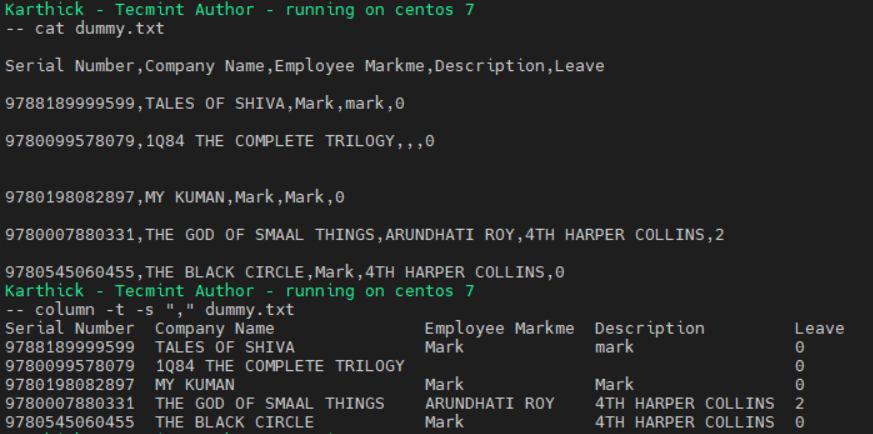
On Debian/Ubuntu, to preserve empty lines, use the -e flag:
column -e -t -s "," dummy.txt # Debian/Ubuntu only
Custom Output Separators in Linux
The default output separator is two spaces, so change this with the -o flag (RHEL-based systems only):
column -t -s "," -o " | " dummy.txt # RHEL-based only
This creates a pipe-separated output format, useful when preparing data for further processing.
You can use any string as a separator:
column -t -s ":" -o " → " /etc/passwd | head -5  # Unicode arrow separator
column -t -s "," -o "||" data.csv                # Double pipe separator
Converting Rows to Columns in Linux
The -x flag converts rows into columns, filling horizontally before moving to the next row:
column -x fillcols.txt

This is particularly useful when displaying lists of items compactly:
ls /usr/bin | column -x
Running column without flags defaults to -x behavior.
Working with Command Output
Column excels at formatting command output on the fly.
Formatting df Output.
df -h | column -t
Formatting ps Output.
ps aux | column -t
Creating Quick Tables from Data.
echo -e "Name,Age,CitynJohn,30,NYCnJane,25,LA" | column -t -s ","
Output:
Name  Age  City
John  30   NYC
Jane  25   LA
JSON-Like Key-Value Formatting
When working with key-value pairs:
column -t -s "=" config.ini
For environment variables in readable format:
env | column -t -s "="
Specifying Column Width
Control output width using the COLUMNS environment variable:
COLUMNS=80 column -t -s ":" /etc/passwd | head -5
The column command automatically adapts to your terminal width:
echo $COLUMNS # Check current terminal width
When you resize your terminal, column adjusts its output accordingly. Compare these examples with different terminal widths:
column -t -s ":" /etc/passwd | head -5

Advanced Table Formatting (util-linux 2.23+)
Modern versions of column offer additional table formatting options:
Specify which line is the header:
column -t -s "," -N "Name,Age,City" data.csv
Right-Align Columns
column -t -s "," -R 2,3 data.csv # Right-align columns 2 and 3
Truncate Columns
column -t -s ":" -T 1,6 /etc/passwd # Truncate columns 1 and 6
Combining with Other Commands
Column works excellently in pipelines:
# Format awk output
awk -F: '{print $1,$3,$6}' /etc/passwd | column -t

# Format cut output
cut -d: -f1,3,6 /etc/passwd | column -t -s ":"

# Format grep results
grep -v "^#" /etc/services | column -t
Generate formatted reports from data:
(echo "USER,CPU%,MEM%,COMMAND"; ps aux | awk '{print $1","$3","$4","$11}' | tail -n +2) | column -t -s ","
The column command transforms messy data into readable tables with minimal effort.
Whether you’re cleaning CSV files, formatting configuration files, or making command output more readable, column provides the flexibility needed for effective data presentation.
What’s your experience with the column command? Share your use cases in the comments below.