Updated: This article has been refreshed to cover the most popular Linux console file managers, highlighting their features, benefits, and why they are widely used.
Linux console file managers can be very helpful in day-to-day tasks, when managing files on a local machine, or when connected to a remote one. The visual console representation of the directory helps us quickly perform file/folder operations and saves us some time.
In this article, we’re going to review some of the most frequently used Linux console (command-line or terminal) file managers and their features and benefits.
1. Yazi – Blazing Fast Terminal File Manager
If you’re looking for the fastest terminal file manager available today, Yazi is your answer. Written in Rust and powered by asynchronous I/O, it delivers a smooth and responsive experience that puts older file managers to shame.
What makes Yazi special is its excellent image preview support. It works with multiple protocols including Kitty, Konsole, iTerm2, and Mintty, allowing you to view images directly in your terminal.
It also includes built-in code highlighting and image decoding, which significantly speeds up file loading.
The plugin system lets you customize its behavior and add new features, making it a powerful and flexible tool for managing files from the command line.
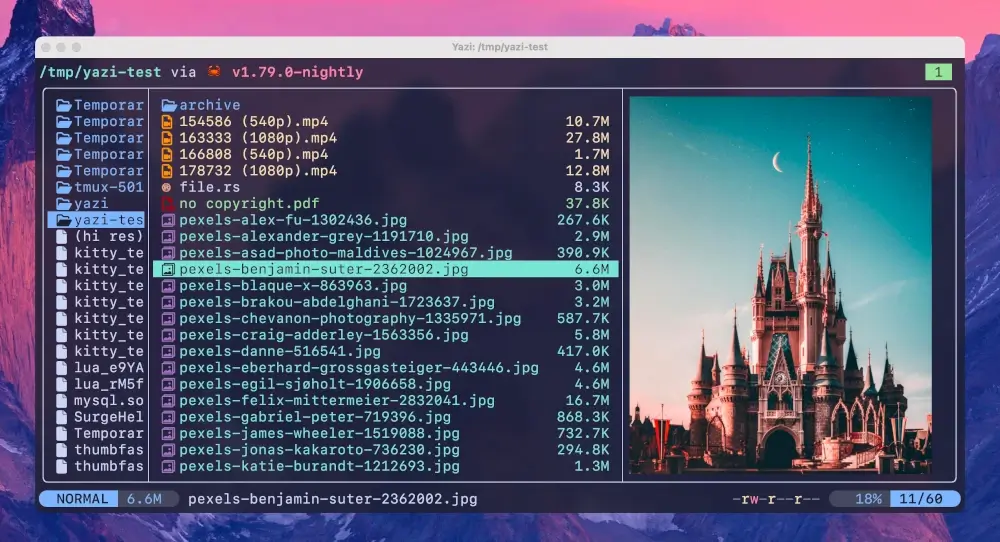
To install Yazi, you’ll need to download the pre-compiled binary from the Yazi releases page. A nerd font is recommended for the best visual experience.
For detailed installation methods including using Rust cargo, check the official Yazi documentation.
2. GNU Midnight Commander
Midnight Commander, often referred to simply as mc, remains one of the most popular file managers in this category. While it’s been around for decades, it’s still actively maintained and widely used.
Mc comes with all kinds of useful features – aside from copying, moving, deleting, and creating files and directories, you can change permissions and ownership, review archives, use it as an FTP client, and much more.
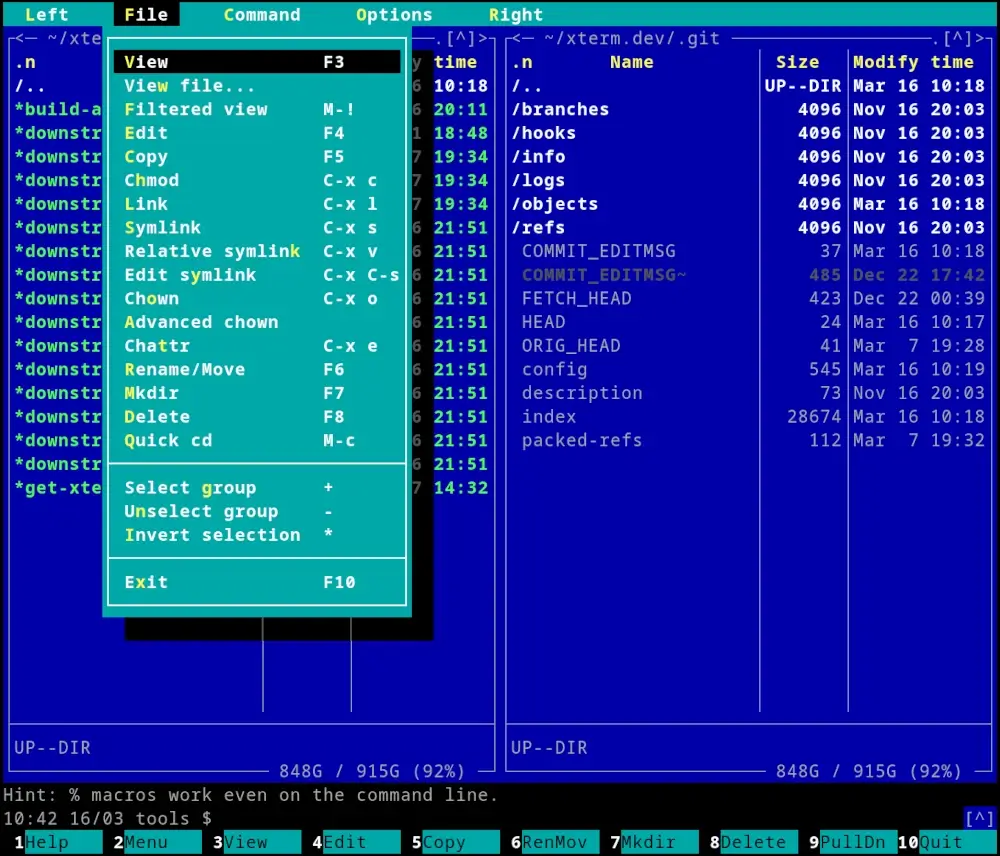
The best part? It’s incredibly beginner-friendly with function key shortcuts (F1-F10) clearly labeled at the bottom of the screen.
You can find our full review on how to install and use Midnight Commander console-based file manager at Midnight Commander – The Best Console File Manager for Linux.
To install Midnight Commander you can use the following commands:
sudo apt install mc         [On Debian, Ubuntu and Mint]
sudo yum install mc         [On RHEL/CentOS/Fedora and Rocky/AlmaLinux]
sudo emerge -a sys-apps/mc  [On Gentoo Linux]
sudo apk add mc             [On Alpine Linux]
sudo pacman -S mc           [On Arch Linux]
sudo zypper install mc      [On OpenSUSE]
3. Ranger Console File Manager
Ranger is another top choice when looking for a console file manager, especially if you’re a Vim user.
It has a vim-like interface with a unique three-column layout that shows your current directory in the middle, parent directory on the left, and a preview of the selected file on the right.
The preview feature is particularly impressive – it can display text files, images (via w3m), PDFs, and even videos.
It also supports bookmarks, mouse support, and tabbed view for working with multiple directories simultaneously.

To install Ranger you can use the following commands:
sudo apt install ranger         [On Debian, Ubuntu and Mint]
sudo yum install ranger         [On RHEL/CentOS/Fedora and Rocky/AlmaLinux]
sudo emerge -a sys-apps/ranger  [On Gentoo Linux]
sudo apk add ranger             [On Alpine Linux]
sudo pacman -S ranger           [On Arch Linux]
sudo zypper install ranger      [On OpenSUSE]
You can find our full review on how to install and use Ranger terimanl-based file manager at Ranger – A Nice Console File Manager with VI Key Bindings.
4. Nnn – Terminal File Browser
Nnn (n³) is one of the fastest and most lightweight console file managers available. Don’t let its minimalist appearance fool you – this thing is incredibly powerful and works on virtually any platform including Linux, macOS, BSD, and even Android via Termux.
The interaction is simple and intuitive, which makes it easy for new users to get comfortable with terminal-based file management.
It uses familiar shortcuts, supports plugins, and offers features like fuzzy search and instant filtering with search-as-you-type.

What’s impressive is its low memory footprint, which is designed to work efficiently even on low-power, resource-limited devices while still being perfectly capable on regular desktops.
To install nnn, you can use the following command:
sudo apt install nnn         [On Debian, Ubuntu and Mint]
sudo yum install nnn         [On RHEL/CentOS/Fedora and Rocky/AlmaLinux]
sudo emerge -a sys-apps/nnn  [On Gentoo Linux]
sudo apk add nnn             [On Alpine Linux]
sudo pacman -S nnn           [On Arch Linux]
sudo zypper install nnn      [On OpenSUSE]
5. Joshuto – Modern Ranger Alternative
Joshuto is a ranger-like terminal file manager written in Rust that brings modern performance and features to the familiar Ranger workflow.
If you love Ranger but want something faster with async operations, Joshuto is worth checking out.
What sets Joshuto apart is its asynchronous file I/O operations like cut, copy, and paste run in the background, so you can continue working without waiting.
It also includes features like tab support for managing multiple locations, trash support (instead of permanent deletion), and devicons for visual file type indicators.
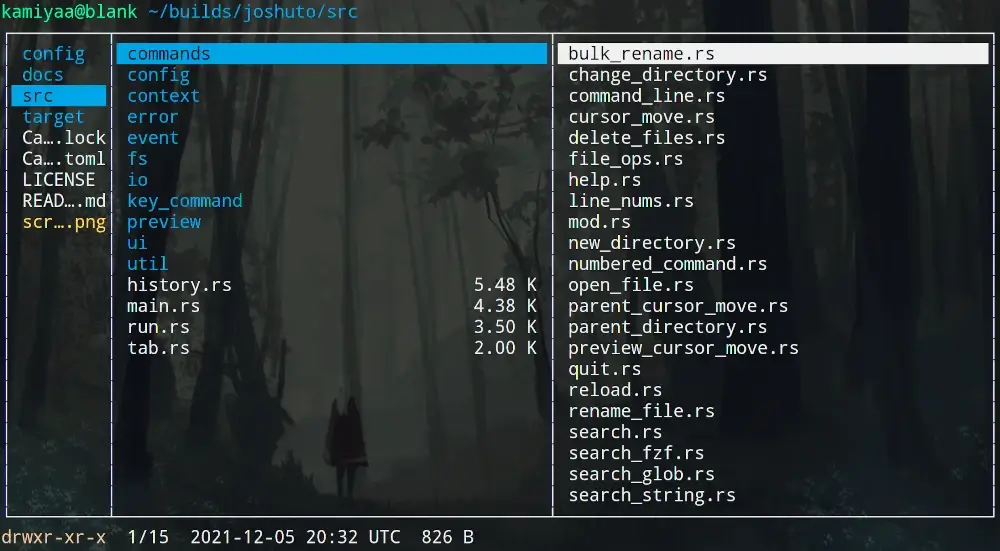
The visual mode (borrowed from Vim) makes it easy to select ranges of files, and the fuzzy search integration via fzf helps you locate files quickly in large directories.
To install Joshuto, you can use the installation script:
bash <(curl -s https://raw.githubusercontent.com/kamiyaa/joshuto/master/utils/install.sh)
Or install via package managers:
sudo dnf copr enable atim/joshuto -y    [On Fedora]
sudo dnf install joshuto
cargo install --git https://github.com/kamiyaa/joshuto.git    [Using Rust Cargo]
For more installation options, check the Joshuto GitHub repository.
6. Broot – Tree-Based File Navigator
Broot takes a completely different approach to file management. Instead of traditional panels, it shows you a tree view of your directory structure with powerful fuzzy search and filtering capabilities.
Think of it as a combination of the tree command, find, and a file manager all rolled into one.
Here’s what makes Broot special, as you type, it filters the tree view in real-time, showing you only relevant files and directories.
The Git integration displays file status right in the tree, and the “whale spotting” mode helps you identify large files eating up disk space.
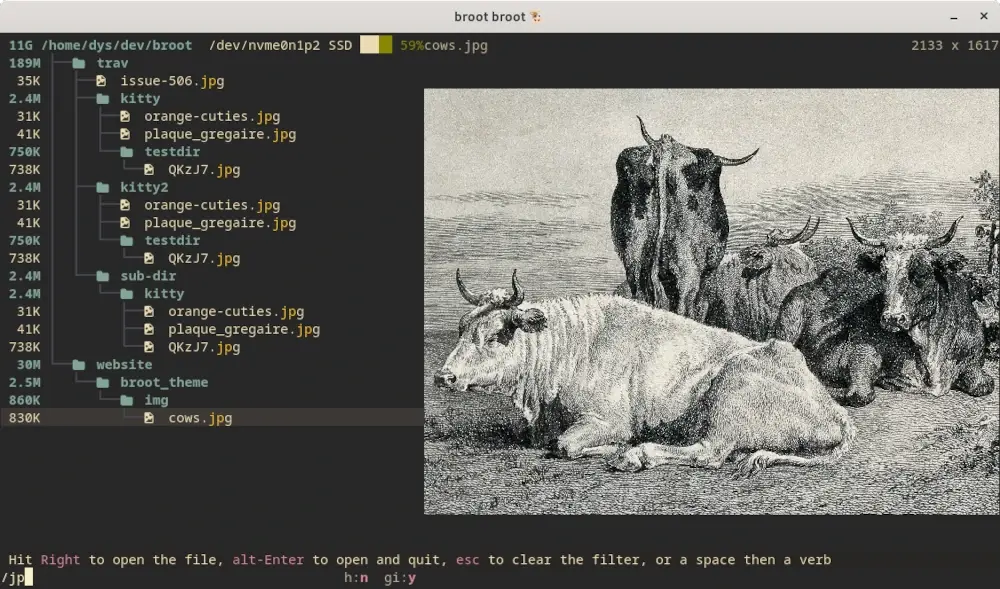
The :cmd command mode is incredibly powerful, letting you perform batch operations, sort files, check permissions, and more without leaving the interface.
You can even open side-by-side panels to compare directories, and when you find the right location, Broot can CD your shell into that directory.
To install Broot, download the binary from the Broot download page:
curl -o broot -L https://dystroy.org/broot/download/x86_64-linux/broot
sudo mv broot /usr/local/bin/
sudo chmod +x /usr/local/bin/broot
You can also install via package managers:
cargo install broot             [Using Rust Cargo]
sudo pacman -S broot            [On Arch Linux]
For detailed installation instructions, visit the Broot installation page.
7. lf – List Files
Lf (which stands for “List files“) is a command-line file manager written in Go, originally inspired by Ranger and was created to fill the gaps of missing features in ranger while maintaining a similar workflow.
Here’s what makes lf stand out:
- Cross-platform – Works on Linux, macOS, BSD, and partially on Windows.
- Single binary – No runtime dependencies required.
- Low memory footprint – Extremely lightweight.
- Configuration with shell commands – Highly customizable.
- Customizable keybindings – Make it work your way.
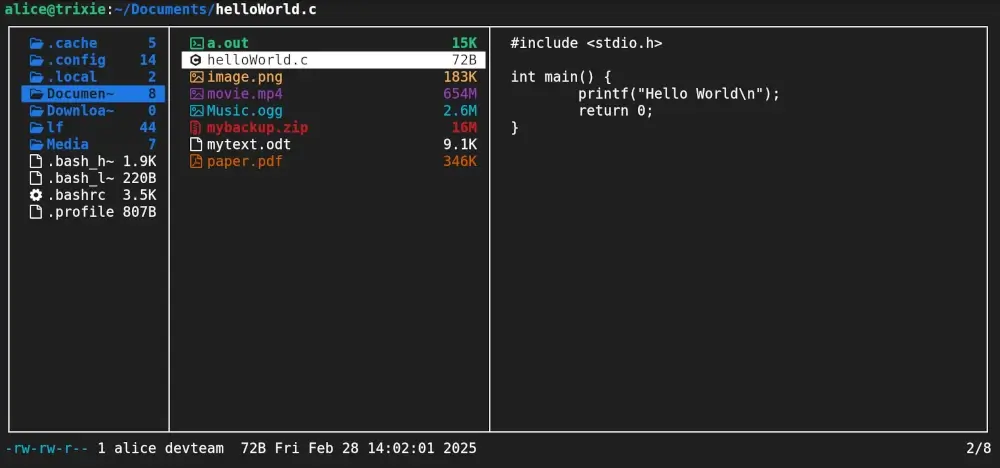
To install lf, simply download the binary for your operating system from the lf releases page.
7. Vifm – Console File Manager
Vifm is another command-line-based file manager that uses a curses interface. If you’re a Vim user, you won’t need to learn a new set of commands to work with vifm, as it uses the same keybindings you’re already familiar with.
It features a dual-pane layout with auto-completion support and various view options for comparing file trees. You can also execute remote commands and even integrate it with Vim as a powerful file picker using the vifm.vim plugin.
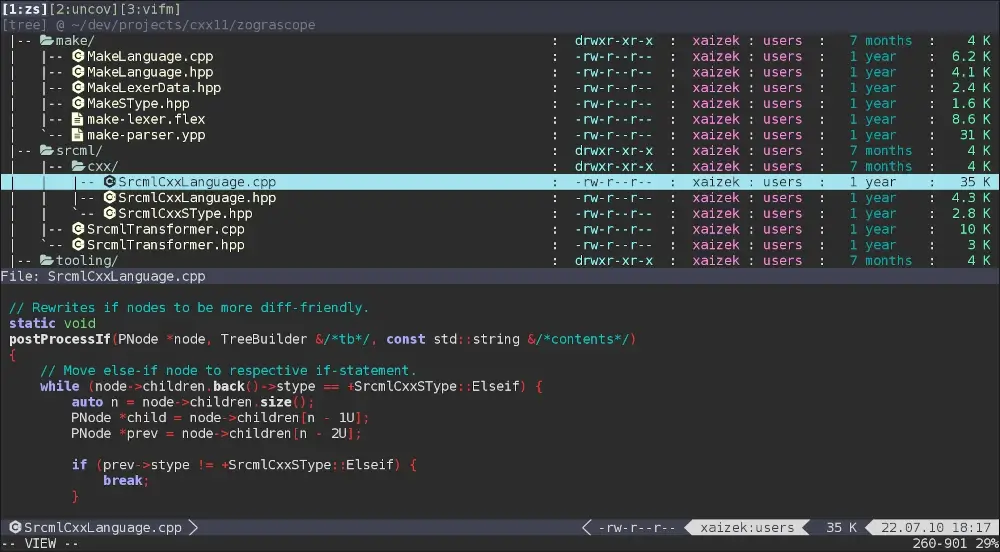
To install Vifm you can use the following commands:
sudo apt install vifm         [On Debian, Ubuntu and Mint]
sudo yum install vifm         [On RHEL/CentOS/Fedora and Rocky/AlmaLinux]
sudo emerge -a sys-apps/vifm  [On Gentoo Linux]
sudo apk add vifm             [On Alpine Linux]
sudo pacman -S vifm           [On Arch Linux]
sudo zypper install vifm      [On OpenSUSE]
A more detailed review of vifm can be seen at Vifm command line-based file manager for Linux.
9. xplr – Hackable Terminal File Manager
xplr takes a different approach compared to traditional terminal file managers. At first glance, it looks more like a terminal dashboard than a file manager, with multiple panels displaying file tables, logs, sort and filter options, selected files, and even a cheatsheet with keybindings.
Navigation is Vim-inspired, but with a unique modal system. You press a hotkey to enter a specific “mode“, which contains related actions like creating files or copying and pasting.
This layered approach might take some getting used to, but it becomes incredibly efficient once you master it.
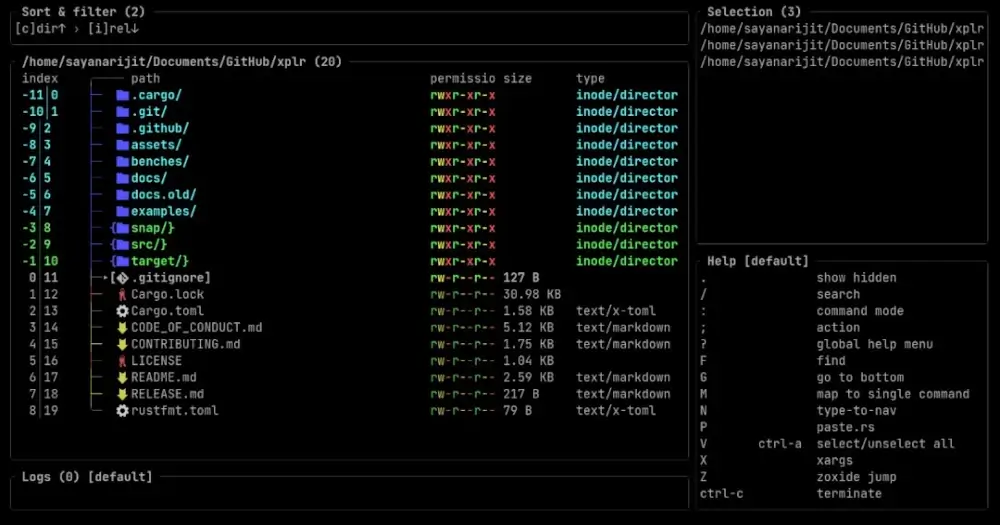
The real power of xplr lies in its customization capabilities, where you have complete control over both the interface and your workflow.
To install xplr, download the binary from the xplr releases page or check the installation documentation.
10. Superfile – Modern Terminal File Manager
Superfile is a relatively new addition to the terminal file manager ecosystem, bringing a modern and stylish interface designed specifically for developers and system administrators.
Its simple yet powerful interface allows you to browse, copy, move, and edit files directly from the command line.
Superfile offers a range of convenient features including customizable key bindings, tabbed browsing, multiple panels, and support for various file operations.
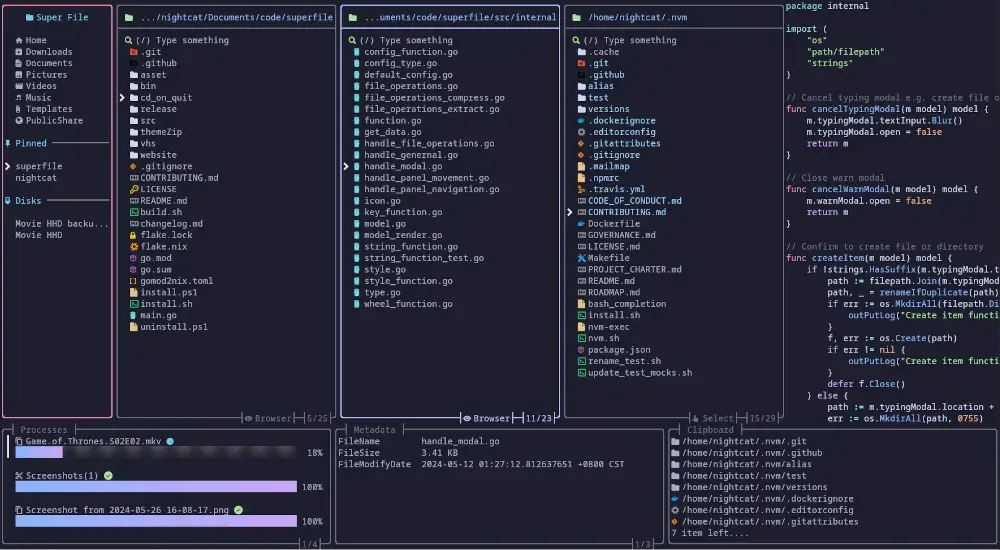
Whether you’re managing local files or remote servers, superfile’s efficiency and flexibility make it an ideal choice for anyone seeking a reliable file management solution.
To install Superfile, visit the official installation guide.
11. Clifm – Fast Command-Line File Manager
Clifm takes a unique approach – instead of using a traditional TUI (Text User Interface), it operates like a shell, allowing you to interact with your file system using familiar commands.
Unlike file managers like Midnight Commander or Ranger that rely on menus and navigation panels, Clifm streamlines the experience by enabling direct command input.
This makes it ideal for those who are already comfortable with the command line and want faster file management without switching contexts.

It’s lightning-fast and works great on kernel consoles, SSH sessions, or any remote environment.
To install Clifm, check the installation instructions.
12. Cfiles Fast Terminal File Manager
Cfiles is a fast terminal file manager written in C and uses ncurses and it is dmilar to ranger, but uses vi keybindings, making it familiar for Vim users.
It has a few dependencies such as cp, mv, fzf, xdg-open, and others.
While it is lightweight, its installation requires a few more steps than other file managers.
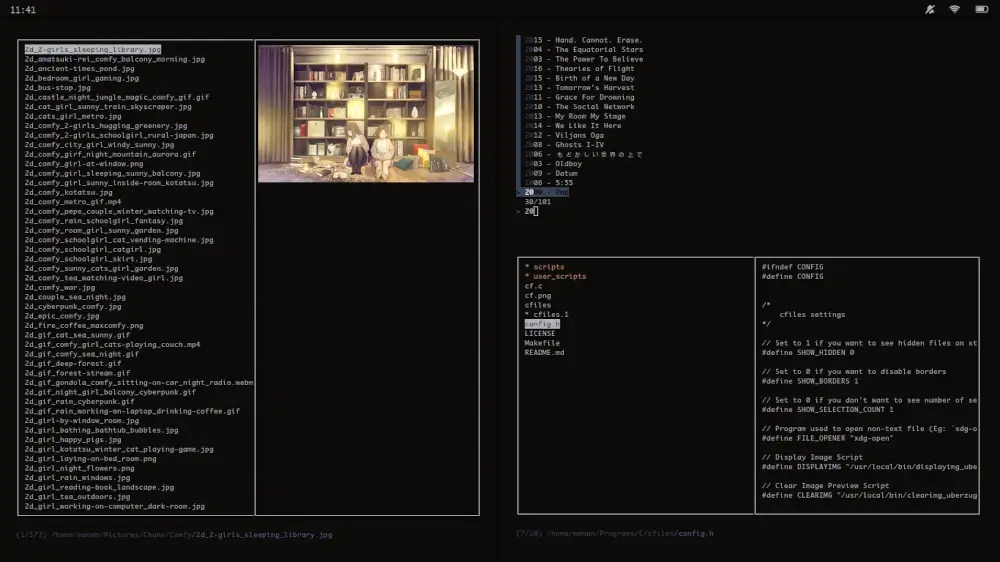
To install cfiles, first install development tools:
sudo apt install build-essential          [On Debian/Ubuntu]
sudo yum groupinstall 'Development Tools' [On CentOS/RHEL]
Next, clone the cfiles repository and install it:
git clone https://github.com/mananapr/cfiles.git
cd cfiles
gcc cf.c -lncurses -o cf
sudo cp cf /usr/bin/
A more detailed review of cfiles can be found here: cfiles – A Fast Terminal File Manager with Vim Keybindings
13. Lfm – Last File Manager
Lfm shortened for Last File Manager is a curses-based console file manager written in Python that can be used with 1 or 2 panes and includes useful features such as filters, bookmarks, history, VFS for compressed files, tree view, and direct integration with common tools like find command, grep utility, df command, and other tools.

To install Lfm, you can use the following command:
sudo apt install lfm         [On Debian, Ubuntu and Mint]
sudo yum install lfm         [On RHEL/CentOS/Fedora and Rocky/AlmaLinux]
sudo emerge -a sys-apps/lfm  [On Gentoo Linux]
sudo apk add lfm             [On Alpine Linux]
sudo pacman -S lfm           [On Arch Linux]
sudo zypper install lfm      [On OpenSUSE]
You can also install lfm using the pip command:
sudo pip install lfm
14. Walk Terminal File Manager
Walk is a terminal-based navigator that serves as an alternative to the traditional ls and cd commands.
It allows for quick navigation using fuzzy searching, cd integration is quite simple, and you can open Vim directly from the walk.

To install Walk Terminal, simply download the binary-related build for your OS from the releases page.
Conclusion
The terminal file manager landscape has evolved significantly, with modern tools like Yazi, Joshuto, and Broot bringing impressive performance improvements while maintaining the efficiency that makes terminal-based file management so appealing.
Whether you’re looking for speed (Yazi, nnn), a modern Ranger alternative (Joshuto), unique tree-based navigation (Broot), Vim integration (Ranger, Vifm), or beginner-friendliness (Midnight Commander), there’s a terminal file manager that fits your workflow.
The Rust-based file managers (Yazi, Joshuto, Broot) represent the latest generation of tools, offering blazing-fast performance and modern features like async I/O and advanced customization.
Meanwhile, classic options like Midnight Commander and Ranger continue to serve users who prefer their tried-and-tested workflows.
If you think we’ve missed one or have a favorite you’d like to share, please let us know in the comment section below.