nc, sum column values on the fly with awk, remove orphan packages, find your local and public IP, enable colored terminal output, and use hash tags to find long commands fast.These are not complicated one-line commands you’ll forget after a day. They are simple and practical tricks that help solve real problems and make working in the Linux terminal faster and easier over time.
1. Create a Terminal Chat Server with nc
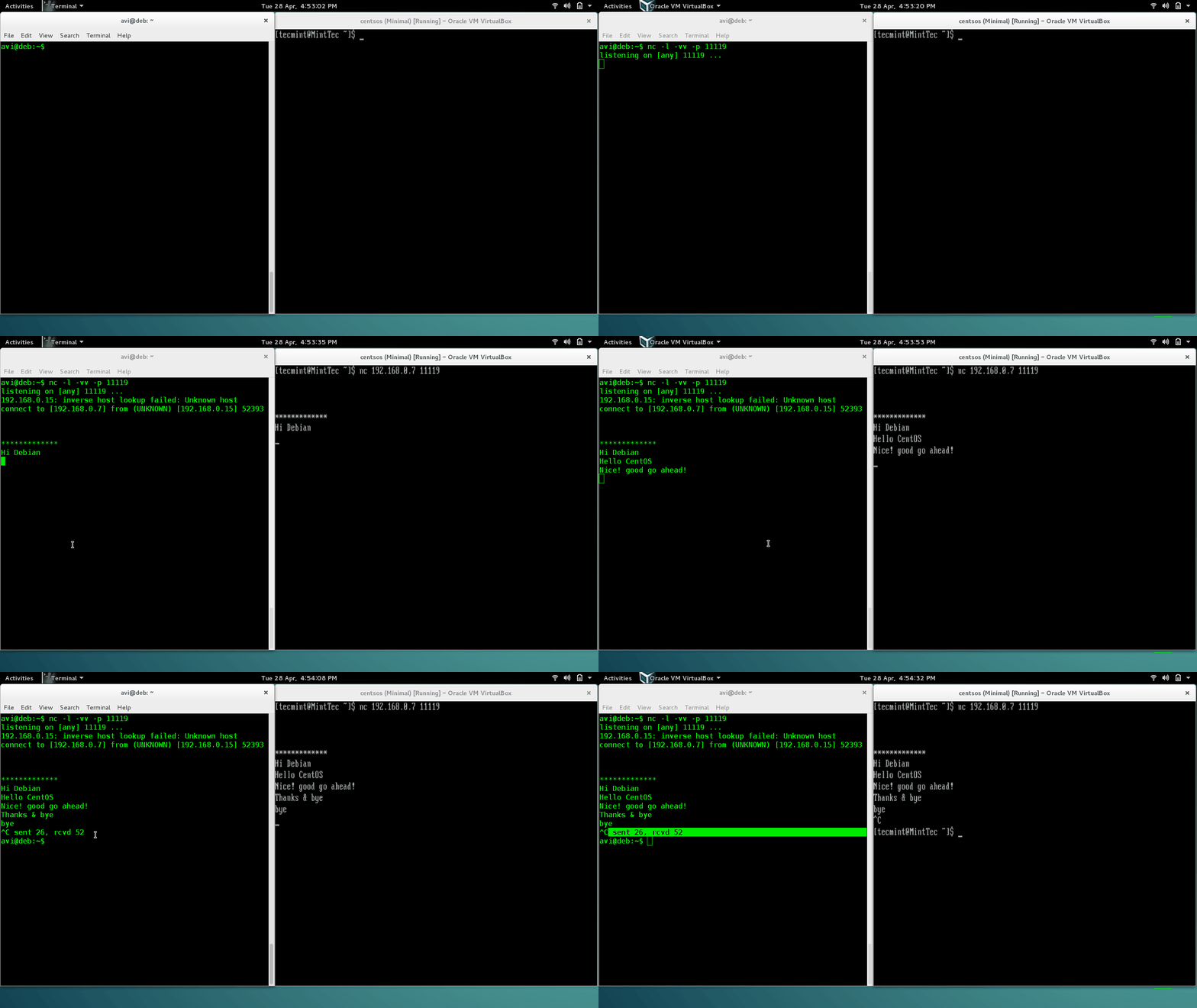
Most Linux users know nc (Netcat) for checking ports or transferring files, but you can also use it to create a simple chat connection between two computers directly from the terminal.
On the first machine (server), start listening on a port:
nc -lvp 11119
What the options mean:
-l→ Listen for incoming connections.-v→ Show connection details.-p 11119→ Use port 11119 (you can choose another unused port).
Example output:
Listening on 0.0.0.0 11119
Connection received on 192.168.0.15 54320
On the second machine (client), connect using:
nc 192.168.0.7 11119
Replace 192.168.0.7 with the IP address of the server machine. Once the second machine connects, both systems can send messages to each other through the terminal.
Now just start typing messages and press Enter. The messages will appear on the other machine instantly.
To stop the chat session, press:
Ctrl + C
Important: If you see Connection refused, the port might be blocked by a firewall.
On RHEL-based distributions, check:
firewall-cmd --list-ports
On Debian-based systems, check:
ufw status
nc for quick in-session messaging, who’d find it useful.2. Sum a Column of Numbers from Command Output
When working in Linux, you’ll often need to quickly add numbers from command output, such as file sizes, memory usage, or log statistics.
For example, ls -l shows file details, where the 5th column contains the file size:
ls -l
Example output:
total 48
-rw-r--r-- 1 ravi ravi  4096 May 10 10:01 access.log
-rw-r--r-- 1 ravi ravi 12288 May 10 10:02 error.log
-rw-r--r-- 1 ravi ravi  8192 May 10 10:03 syslog
To print only the 5th column, use awk command:
ls -l | awk '{print $5}'
Output:
4096
12288
8192
Now, to add all those numbers together:
ls -l | awk '{print $5}' | awk '{total = total + $1} END {print total}'
Output:
24576
The final number is the total size of all files in bytes.
How It Works:
print $5→ Prints the 5th column.total = total + $1→ Adds each number to a running total.END {print total}→ Prints the final result after processing all lines.
You can change $5 to another column number, depending on your data, and this trick works with many Linux commands.
ls -l output, who’s still doing it the hard way.3. Remove Orphan Packages
When you install software on Linux, extra packages called dependencies are often installed automatically, and later, if you remove the main package, those dependencies may stay behind even though nothing else needs them anymore, and these unused packages are called orphan packages.
Over time, they can waste disk space and clutter your system.
On Ubuntu or Debian:
sudo apt autoremove
On Rocky Linux, RHEL, or Fedora:
sudo dnf autoremove
Example output:
Removing unused dependencies:
  libfoo 1.2.3
  libbar 4.5.6
  ...
Proceed? [y/N]
Always review the list carefully before pressing y, especially on servers or important systems. If you see a package you want to keep on Debian-based systems, mark it as manually installed:
sudo apt-mark manual package-name
Replace package-name with the actual package name.
Important Tip: The dnf autoremove on Rocky Linux or Red Hat Enterprise Linux can sometimes remove more packages than expected, so double-check the list before confirming.
4. Get Your Local and Public IP from the Terminal
Older Linux systems commonly used ifconfig to view network information, but most modern distributions now use the ip command instead.
Find Your Local IP Address
ip addr show | grep 'inet ' | grep -v '127.0.0.1' | awk '{print $2}' | cut -d/ -f1
Example output:
192.168.1.5
What This Command Does:
ip addr show→ Shows all network interfaces and IP addresses.grep 'inet '→ Displays only IPv4 addresses.grep -v '127.0.0.1'→ Removes the local loopback address.awk '{print $2}'→ Extracts the IP address field.cut -d/ -f1→ Removes the subnet part like /24.
The final result is your system’s local IP address.
Find Your Public IP Address
To see the IP address visible on the internet, use:
curl -s ifconfig.me
Example output:
203.0.113.42
It can help when:
- Checking if a VPN is working.
- Confirming firewall or router changes.
- Verifying which IP your server uses online.
The -s option in curl means silent mode, which hides extra progress information and prints only the IP address.
ifconfig on modern systems without knowing it’s deprecated, .5. Enable Colored Terminal Output
If your terminal shows everything in plain white text, color support may not be enabled in your shell settings.
The configuration file that controls this is:
~/.bashrc
Open it with:
vi ~/.bashrc
Or
nano ~/.bashrc
Look for this section and make sure the lines do not start with #:
if [ -x /usr/bin/dircolors ]; then
    test -r ~/.dircolors && eval "$(dircolors -b ~/.dircolors)" || eval "$(dircolors -b)"
    alias ls='ls --color=auto'
    alias grep='grep --color=auto'
    alias fgrep='fgrep --color=auto'
    alias egrep='egrep --color=auto'
fi
These settings enable colored output for commands like:
After saving the file, reload the settings without logging out:
source ~/.bashrc
Now, when you run ls, different file types will appear in different colors.
ls
For example:
- Directories → Blue
- Executable files → Green
- Symbolic links → Cyan
See what the colors mean:
dircolors -p | less
Example output:
# Configuration file for the color ls utility
DIR 01;34   # directory
LINK 01;36  # symbolic link
EXEC 01;32  # executable file
These numbers are ANSI color codes:
01;34→ Bold blue01;36→ Bold cyan01;32→ Bold green
You can customize the colors by editing:
~/.dircolors
Linux keeps a history of the commands you run in the terminal, and you can search through that history using the following command, which is called reverse search in Bash.
Ctrl + R
A useful trick is to add a small comment, or “tag”, at the end of important commands so you can find them easily later.
ip addr show | grep 'inet ' | grep -v '127.0.0.1' | awk '{print $2}' | cut -d/ -f1 #myip
The #myip part is treated as a comment, so it does not change how the command works.
Later, press:
Ctrl + R
and type:
myip
You’ll instantly find the full command in your history.
(reverse-i-search)`myip': ip addr show | grep 'inet '...
Press Enter to run the command again.
Important: This only works if your bash history is large enough to keep old entries. Check echo $HISTSIZE. If it’s set to 500 or 1000, bump it up in ~/.bashrc with HISTSIZE=10000 and HISTFILESIZE=20000.
Conclusion
You picked up 6 command-line tricks today: terminal chat with nc, column summing with awk, orphan package cleanup with apt and dnf, pulling your local and public IP with ip and curl, enabling colored ls output, and hash-tagging commands so you can find them later with Ctrl+R.
Pick one and try it right now. The hashtag trick in section 6 takes 10 seconds to try, and it’ll pay off the next time you’re looking for a command you ran last month.
Which of these did you not know before? Drop a comment below and let us know which one you’ll actually use.