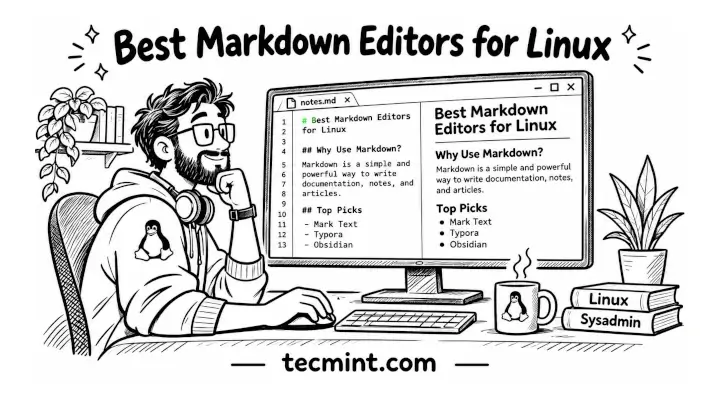
Markdown is a lightweight markup language that lets you write formatted text using plain characters, such as # for a heading or bold for bold text.
It was created by John Gruber in 2004 together with a small Perl script that converts this plain text into valid HTML, and today the same syntax is used for README files, documentation sites, wikis, blog drafts, and personal notes.
Because a Markdown file is plain text, you can write it in any editor, including nano. A dedicated Markdown editor makes the work easier, since it shows you the formatted result as you type, highlights the syntax, and exports your document to formats such as HTML, PDF, or Word.
The problem is that many of the editors recommended a few years ago are no longer developed. Some still install, some don’t start on current distributions, and none of them receive security fixes.
In this updated list, every editor has had a release recently, and every one can be installed on Ubuntu, Debian, Fedora, or the RHEL family today.
Before getting into the list, it helps to know how each editor earned its place, because that also tells you what to look for if you test an editor we didn’t include.
We kept only editors that have published a release or a packaged update within roughly the last year, since an editor without updates eventually stops working with newer libraries and desktop environments.
Each one also had to install on Linux through a distribution package, a Flatpak, an AppImage, or an official repository, rather than through an abandoned PPA (Personal Package Archive).
Beyond that, we looked at how each editor shows a preview (side-by-side or inline), which export formats it supports, and whether it works for a particular kind of writer, such as academics, note takers, programmers, or people who live in the terminal.
Set Up Flathub Once Before You Start
Several editors in this list are distributed as Flatpaks, which are sandboxed packages that work the same way on every distribution, so it saves time to set up the Flathub repository now.
On Ubuntu and Debian, Flatpak isn’t installed by default, so install it first and then add the Flathub remote:
sudo apt update
sudo apt install -y flatpak
flatpak remote-add --if-not-exists flathub https://dl.flathub.org/repo/flathub.flatpakrepo
Fedora ships with Flatpak already installed, so you only need to add the Flathub remote, and the --if-not-exists flag means the command does nothing if it is already enabled:
flatpak remote-add --if-not-exists flathub https://dl.flathub.org/repo/flathub.flatpakrepo
Log out and back in after adding Flathub for the first time, so that Flatpak apps appear in your application menu.
With Flathub ready, let’s start with the editors built only for writing Markdown, since these are the ones most readers are looking for.
1. MarkText
MarkText is a free, MIT-licensed Markdown editor that renders formatted content directly in the editing area as you type. Instead of showing raw Markdown syntax in a separate preview pane, it displays headings, lists, tables, and other elements in their formatted form.
It supports CommonMark and GitHub Flavored Markdown, mathematical expressions through KaTeX, front matter, and emoji. You can also export your documents to HTML and PDF.
MarkText has an interesting development history. Its previous stable release, version 0.17.1, came out in March 2022. After more than four years without a stable release, development resumed in 2026, and the project started receiving regular updates again. The latest stable release is version 0.23.0, published on October 21, 2026.
You can install MarkText on Linux using Flatpak:
flatpak install flathub com.github.marktext.marktext
For other installation options, including DEB, RPM, AppImage, and Snap packages, visit the official GitHub releases page.
MarkText is a good choice for writers who prefer a clean, distraction-free interface with live Markdown rendering instead of editing raw Markdown syntax.
2. Zettlr
While MarkText focuses on editing individual documents, Zettlr is designed for managing large collections of notes, research papers, and long-form documents.
It integrates with reference managers such as Zotero and JabRef, supports Pandoc citation syntax, and uses Pandoc to export documents to formats such as PDF, Word, LaTeX, and reveal.js presentations.
Zettlr is actively developed, with regular feature updates and improvements. Version 4.0, released in December 2025, introduced a rewritten table editor and built-in PDF and image viewers.
The latest stable release, version 4.8.0, arrived in September 2026 with support for admonition (callout) blocks, improvements to full-text search, and several performance and usability fixes.
The Zettlr team provides DEB and RPM packages for Debian/Ubuntu and Fedora/RHEL-based distributions, along with AppImage downloads. A community-maintained Flatpak package is also available on Flathub.
Install Zettlr using Flatpak:
flatpak install flathub com.zettlr.Zettlr
For direct downloads and other installation methods, visit the official Zettlr download page.
Zettlr is particularly useful for students, researchers, journalists, and authors who need to organize research notes, manage references, and write lengthy documents using Markdown.
3. ghostwriter
ghostwriter is a free, open-source Markdown editor that is part of the KDE Gear application collection. It provides a distraction-free writing environment with a live HTML preview, customizable themes, full-screen mode, and document navigation.
One of its useful features is Focus Mode, which highlights the current line, sentence, or paragraph while dimming the surrounding text. It also includes Hemingway Mode, which disables the Backspace and Delete keys to help you keep writing without editing as you go.
ghostwriter comes with the cmark-gfm Markdown processor built in and can integrate with Pandoc, MultiMarkdown, and other Markdown processors when installed. With Pandoc, you can export documents to formats such as PDF, Microsoft Word, EPUB, and LaTeX.
You can install ghostwriter using your distribution’s package manager.
On Ubuntu, add the official PPA and install ghostwriter:
sudo add-apt-repository ppa:wereturtle/ppa
sudo apt update
sudo apt install -y ghostwriter
On Fedora, install it using DNF:
sudo dnf install -y ghostwriter
On Arch Linux, install it from the Extra repository:
sudo pacman -S ghostwriter
Alternatively, install the latest stable Snap package on distributions with Snap support:
sudo snap install ghostwriter
If you want additional export formats, install Pandoc separately.
On Ubuntu and Debian:
sudo apt install -y pandoc
On Fedora:
sudo dnf install -y pandoc
ghostwriter is a good choice for writers who want a simple Markdown editor without unnecessary distractions, particularly when working on articles, documentation, essays, or long-form writing.
4. Apostrophe
If you use GNOME and prefer a clean writing environment, Apostrophe is a Markdown editor designed to fit naturally into the GNOME desktop. It uses Pandoc as its Markdown processing engine and provides a distraction-free interface with a live document preview.
Apostrophe supports multiple Markdown formats and includes light, dark, and sepia themes, spellchecking, document statistics, and a focus mode that reduces distractions while writing. It can also export documents to PDF, Word, LibreOffice, LaTeX, and HTML slideshows. Some export formats, particularly PDF, may require additional dependencies or plugins.
Apostrophe is actively maintained, with version 3.5 released in October 2026. The application is distributed through Flathub and supports both x86_64 and ARM64 Linux systems.
Install Apostrophe using Flatpak:
flatpak install flathub org.gnome.gitlab.somas.Apostrophe
Once installed, launch it from your desktop application menu or run:
flatpak run org.gnome.gitlab.somas.Apostrophe
Apostrophe is a good choice for GNOME users who want a lightweight Markdown editor with live preview, distraction-free writing, and document export without the complexity of a full research or note-management application.
5. ReText
ReText is a lightweight, Python-based editor for Markdown and reStructuredText. It is particularly useful for developers who write documentation for Sphinx-based projects, as it supports both markup formats in the same application. It also supports Textile and AsciiDoc through its Markups backend.
ReText includes a tabbed interface, live document preview, syntax highlighting, and export to HTML, OpenDocument Text (ODT), and PDF. The latest stable version, 8.1.0, was released in January 2025 and uses Qt 6 with PyQt6.
Although ReText can be installed using Python’s pip package manager, avoid installing it directly into your system Python environment. Recent Ubuntu and Debian releases enforce PEP 668, which prevents system-wide pip installations and can produce an externally-managed-environment error.
Installing the distribution package is the simpler option.
On Ubuntu and Debian, install ReText using APT:
sudo apt update
sudo apt install -y retext
On Fedora, if the package is available in your enabled repositories, install it using DNF:
sudo dnf install -y retext
On Arch Linux, install it from the Extra repository:
sudo pacman -S retext
You can also install ReText in an isolated Python virtual environment if you need a newer version than your distribution provides.
ReText is a good choice for Linux users who want a lightweight editor for both Markdown and reStructuredText, particularly when maintaining technical documentation or Sphinx-based projects.
6. Obsidian
Unlike traditional Markdown editors that focus on individual documents, Obsidian turns a folder of Markdown files into a connected knowledge base. You can link notes using [[double brackets]], explore relationships between documents through an interactive graph view, and extend the application with thousands of community plugins.
One of Obsidian’s biggest advantages is that your notes remain ordinary Markdown (.md) files stored locally on your computer. This means you can open and edit them using any other Markdown editor without being locked into a proprietary file format.
Obsidian is proprietary software, not open source. However, it is free for both personal and commercial use, requires no account for local use, and does not require a subscription to access its core features. Optional paid services are available for synchronizing notes between devices and publishing them online.
Obsidian is available on Flathub through a verified distribution that is approved by the Obsidian team, although the Flatpak package is community-maintained and not officially supported.
Install Obsidian using Flatpak:
flatpak install flathub md.obsidian.Obsidian
Launch it from your application menu or run:
flatpak run md.obsidian.Obsidian
Obsidian is an excellent choice for researchers, developers, students, and writers who want to build a personal knowledge base, connect related notes, and customize their Markdown workflow with plugins.
7. Typora
Typora is a polished, WYSIWYG Markdown editor that renders formatted text directly in the editing area as you type. Its editing experience is similar to MarkText, but Typora offers additional features such as Mermaid diagrams, MathJax support, an outline sidebar, customizable themes, and multiple document export options.
Typora is actively developed, with the latest stable release reaching version 1.14.15 in November 2026.
Unlike free Markdown editors, Typora is proprietary software that requires a paid license. It costs a one-time $14.99 (excluding taxes) for one user and can be activated on up to three devices. There is no subscription or renewal fee, and you can try the application free for 15 days before purchasing a license.
On Ubuntu and Debian, you can install Typora through its official APT repository. This allows the package to receive updates along with your other system packages.
First, add the official GPG key:
sudo mkdir -p /etc/apt/keyrings
curl -fsSL https://downloads.typora.io/typora.gpg | sudo tee /etc/apt/keyrings/typora.gpg > /dev/null
Next, add the signed repository:
echo "deb [signed-by=/etc/apt/keyrings/typora.gpg] https://downloads.typora.io/linux ./" | sudo tee /etc/apt/sources.list.d/typora.list
Update the package index and install Typora:
sudo apt update
sudo apt install -y typora
These commands use the modern APT keyring method instead of the deprecated apt-key command.
For Fedora and other Linux distributions, you can download the Linux archive or the appropriate package from the official Typora releases page. Extract the archive and run the `Typora` executable.
Typora is a good choice for writers who want a polished Markdown editing experience, advanced formatting features, and live rendering without switching between the editor and a separate preview window.
8. VSCodium (or VS Code): Built-In Markdown Preview
VSCodium provides a free, open-source build of Visual Studio Code without Microsoft’s branding and telemetry. It offers nearly the same editing experience as VS Code, including built-in Markdown editing and live preview.
You don’t need to install an additional extension to preview Markdown files. Open any .md file and use these keyboard shortcuts:
Ctrl+Shift+V– Open the Markdown preview in a separate tab.Ctrl+K, followed byV– Open the preview beside the Markdown editor.
The preview updates automatically as you edit the document, making it easy to check headings, tables, links, images, and code blocks.
You can also extend VSCodium with Markdown All in One for table formatting, shortcuts, and table of contents generation, or markdownlint for checking Markdown style and formatting. VSCodium uses the Open VSX extension registry by default, so some extensions available in Microsoft’s Visual Studio Marketplace may not be available.
Install VSCodium from Flathub:
flatpak install flathub com.vscodium.codium
Launch it from your application menu or run:
flatpak run com.vscodium.codium
If you already use Microsoft’s Visual Studio Code, you can use the same Markdown preview shortcuts without installing anything extra.
VSCodium and VS Code are good choices for developers, Linux administrators, and technical writers who want to edit Markdown documentation alongside their source code without switching applications.
9. Pulsar
Pulsar is a community-led continuation of GitHub’s Atom editor, which was officially retired in December 2022. It preserves Atom’s familiar interface, package system, and customization options while continuing development with newer Electron versions and updates.
Pulsar includes a built-in markdown-preview package that displays rendered Markdown alongside your source file. Press Ctrl+Shift+M to toggle the preview, which automatically updates as you edit the document. You can also install additional community packages to extend its Markdown editing capabilities.
Pulsar is actively developed and receives periodic releases. Version 1.132.0, released in May 2026, introduced a built-in terminal package. The subsequent 1.133 releases added features such as terminal hyperlinks and clickable file paths.
The latest release, version 1.133.1, arrived on November 1, 2026, with fixes for Linux users.
Pulsar provides DEB, RPM, AppImage, and TAR.GZ packages for Linux on its official download page.
On Ubuntu and Debian, download the DEB package and install it using APT:
sudo apt install ./Linux.Pulsar_*_amd64.deb
On Fedora and RHEL-based distributions, download the RPM package and install it using DNF:
sudo dnf install ./Linux.Pulsar-*.x86_64.rpm
If you prefer the portable AppImage, download it, make it executable, and launch it:
chmod +x Linux.Pulsar-*.AppImage
./Linux.Pulsar-*.AppImage
The AppImage may require the --no-sandbox argument on some Linux systems. Try launching it normally first and add the flag only if you encounter a sandbox-related startup error. You may also need `libfuse2` on distributions that do not include it by default.
Pulsar is a good choice for developers who liked Atom and want a customizable code editor with built-in Markdown preview, a familiar package ecosystem, and an integrated terminal.
10. Sublime Text
Sublime Text is a fast, proprietary text editor that you can evaluate for free, but a paid license is required for continued use. It includes basic Markdown syntax highlighting, while packages can add features such as improved formatting, list continuation, and rendered previews.
The MarkdownEditing package improves the Markdown writing experience with enhanced syntax highlighting, useful editing behavior, and color schemes. For a rendered preview, install MarkdownPreview, which opens the Markdown output in your browser.
On Ubuntu and Debian, add Sublime HQ’s official stable repository using the deb822 format:
wget -qO - https://download.sublimetext.com/sublimehq-pub.gpg | sudo tee /etc/apt/keyrings/sublimehq-pub.asc > /dev/null

echo -e 'Types: debnURIs: https://download.sublimetext.com/nSuites: apt/stable/nSigned-By: /etc/apt/keyrings/sublimehq-pub.asc' | sudo tee /etc/apt/sources.list.d/sublime-text.sources

sudo apt update
sudo apt install -y sublime-text
On Fedora 41 and newer with DNF5, import the signing key and add the stable repository:
sudo rpm -v --import https://download.sublimetext.com/sublimehq-rpm-pub.gpg

sudo dnf config-manager addrepo --from-repofile=https://download.sublimetext.com/rpm/stable/x86_64/sublime-text.repo

sudo dnf install -y sublime-text
For older Fedora releases using the legacy DNF config-manager syntax, use this repository command instead:
sudo dnf config-manager --add-repo https://download.sublimetext.com/rpm/stable/x86_64/sublime-text.repo
After installing Sublime Text, open the Command Palette with Ctrl+Shift+P, select Install Package Control, and press Enter. Then open the Command Palette again, choose Package Control: Install Package, and install MarkdownEditing and MarkdownPreview.
11. GNU Emacs
GNU Emacs is a powerful, extensible text editor that supports Markdown through the markdown-mode package. It adds Markdown syntax highlighting, keyboard shortcuts for inserting headings, links, lists, and code blocks, along with commands for rendering and previewing Markdown documents in a web browser.
Emacs runs as both a graphical desktop application and a terminal-based editor. To launch it without a graphical interface, use emacs -nw, which makes it particularly useful when editing Markdown files on remote Linux servers.
On Ubuntu and Debian, install Emacs using APT:
sudo apt update
sudo apt install -y emacs
On Fedora, Rocky Linux, AlmaLinux, and RHEL, install it using DNF (provided the package is available in your enabled repositories):
sudo dnf install -y emacs
Once Emacs is installed, you can add markdown-mode from NonGNU ELPA, the package repository enabled by default in Emacs 28 and later.
Start Emacs and press M-x (Alt+x), type package-install, press Enter, and then enter markdown-mode to install the package. The latest stable version is markdown-mode 2.8, released in March 2026, and it requires Emacs 28.1 or later.
To preview a Markdown document, open the file in Emacs and press C-c C-c p. This command renders the document as HTML and opens the result in your default web browser. You must first install a Markdown processor, such as Pandoc, Markdown.pl, MultiMarkdown, or CommonMark, for rendering and preview commands to work.
GNU Emacs with markdown-mode is a good choice for developers, Linux administrators, and experienced terminal users who prefer keyboard-driven editing and want Markdown support inside their existing Emacs workflow.
12. Vim and Neovim with markdown-preview.nvim
If you prefer writing Markdown in Vim or Neovim, markdown-preview.nvim adds a live preview that opens in your web browser and synchronizes scrolling with your editor. It supports Vim 8.1 and later, as well as Neovim, and includes support for mathematical expressions through KaTeX, Mermaid diagrams, PlantUML, charts, tables of contents, and task lists.
Unlike older preview solutions that require a separate Node.js server, markdown-preview.nvim can download and use a prebuilt preview server. This means you don’t need to install Node.js, npm, or Yarn globally just to use its standard installation method.
The following example uses Neovim with the lazy.nvim plugin manager.
First, create the plugin configuration directory if it doesn’t already exist:
mkdir -p ~/.config/nvim/lua/plugins
On Ubuntu and Debian, open the configuration file using nano:
nano ~/.config/nvim/lua/plugins/markdown-preview.lua
On Rocky Linux, AlmaLinux, and RHEL, you can use vi if nano is not installed:
vi ~/.config/nvim/lua/plugins/markdown-preview.lua
Add the following configuration:
-- ~/.config/nvim/lua/plugins/markdown-preview.lua
return {
  "iamcco/markdown-preview.nvim",
  cmd = { "MarkdownPreviewToggle", "MarkdownPreview", "MarkdownPreviewStop" },
  ft = { "markdown" },
  build = function()
    vim.fn["mkdp#util#install"]()
  end,
}
Save the file and exit the editor. Each option controls how lazy.nvim loads and installs the plugin:
cmdregisters the preview commands and loads the plugin when one of them is executed.ft = { "markdown" }loads the plugin automatically when you open a Markdown file.buildruns the plugin’s installation function to download and install its prebuilt preview server without requiring a global Node.js or Yarn installation.
Restart Neovim and allow lazy.nvim to install the plugin. Open any .md file and run the following command:
:MarkdownPreview
Your Markdown document will open in the default web browser, with the preview updating as you edit and synchronized scrolling keeping the browser view aligned with your cursor.
For Vim users, the plugin also supports Vim 8.1 and later, but installation requires a Vim-compatible plugin manager or manual setup. Refer to the official GitHub repository for Vim installation instructions.
13. Glow
Unlike the previous editors that open Markdown previews in a browser, Glow from Charm renders Markdown directly in your terminal. It displays formatted headings, lists, tables, links, and syntax-highlighted code blocks without requiring a graphical interface.
Glow is not a Markdown editor, but it works well alongside terminal editors such as Vim, Neovim, and Nano. It provides two ways to read documents: a command-line renderer for individual files and an interactive terminal interface (TUI) for browsing Markdown files in a directory or Git repository.
On Ubuntu and Debian, add Charm’s signed APT repository and install Glow:
sudo mkdir -p /etc/apt/keyrings
curl -fsSL https://repo.charm.sh/apt/gpg.key | sudo gpg --dearmor -o /etc/apt/keyrings/charm.gpg
echo "deb [signed-by=/etc/apt/keyrings/charm.gpg] https://repo.charm.sh/apt/ * *" | sudo tee /etc/apt/sources.list.d/charm.list
sudo apt update
sudo apt install -y glow
On Fedora, Rocky Linux, AlmaLinux, and RHEL, create a repository configuration file using vi:
sudo vi /etc/yum.repos.d/charm.repo
Add the following configuration:
# /etc/yum.repos.d/charm.repo
[charm]
name=Charm
baseurl=https://repo.charm.sh/yum/
enabled=1
gpgcheck=1
gpgkey=https://repo.charm.sh/yum/gpg.key
Save the file and exit the editor. Then install Glow using DNF:
sudo dnf install -y glow
To read a Markdown file, pass its filename to Glow:
glow README.md
For longer documents, add the -p option to open the rendered output in a pager, allowing you to scroll through the content:
glow -p README.md
You can also run Glow without arguments:
glow
This opens its interactive terminal interface, where you can browse Markdown files in the current directory and its subdirectories. If you are inside a Git repository, Glow can also discover Markdown files throughout the repository.
Glow is particularly useful for Linux administrators and developers who frequently read README files, project documentation, and configuration guides directly on remote servers without opening a web browser.
cat and scrolls through raw syntax.Tips for Choosing the Right Markdown Editor
With thirteen options in front of you, the easiest way to choose is to start from how you write rather than from the feature lists.
If you want to write without looking at Markdown syntax at all, choose MarkText if you want free and open source, or Typora if you’d rather pay for extra polish. If you prefer seeing the raw text with a preview beside it, ghostwriter on KDE and Apostrophe on GNOME both match their desktops and stay out of your way.
For long projects with many files, the choice is between Zettlr and Obsidian. Zettlr is open source and much stronger at citations and academic export, while Obsidian is better at linking notes together and has a far larger plugin ecosystem, at the cost of being closed source. Since both store your notes as ordinary .md files, you can move between them later without converting anything.
If you already live in a code editor, there is little reason to switch. VSCodium, Pulsar, Sublime Text, Emacs, and Neovim all handle Markdown well once the right preview is in place, and Glow fills the gap on servers where no graphical editor is available.
Finally, check how an editor is distributed before relying on it. A Flatpak or a distribution package updates together with the rest of your system, while a manually downloaded AppImage or tarball needs you to remember to replace it by hand, which is how many people end up running an editor that stopped receiving updates years ago.
If this comparison saved you from testing a dozen editors one by one, share it with a colleague who’s choosing a Markdown tool for their team’s documentation.
Conclusion
Most of the Markdown editors that dominated these lists a few years ago are no longer maintained, but MarkText’s return, Zettlr’s steady 4.x releases, and KDE’s work on ghostwriter mean Linux users have better choices today than before. Pick the editor that matches how you write, install it from a Flatpak or your distribution’s repository, and it will keep receiving updates.
Want to go deeper? If you’d like to get more comfortable with the terminal tools used throughout this list, such as apt, dnf, curl, and chmod, our 100+ Essential Linux Commands course walks through the commands Linux users rely on every day, with practical examples for each one.
We’d love to hear which Markdown editor you’re using on your own Linux desktop. Is there a maintained editor we missed that deserves a spot on this list?
Do you prefer an inline editor like MarkText or a side-by-side preview like ghostwriter? And if you’ve run into an install error with any of the commands above, feel free to post it in the comments so we can help.